Managing Content
Use Content to build the playlist for the selected mirror. The counters at the top show active items, welcome messages and images.
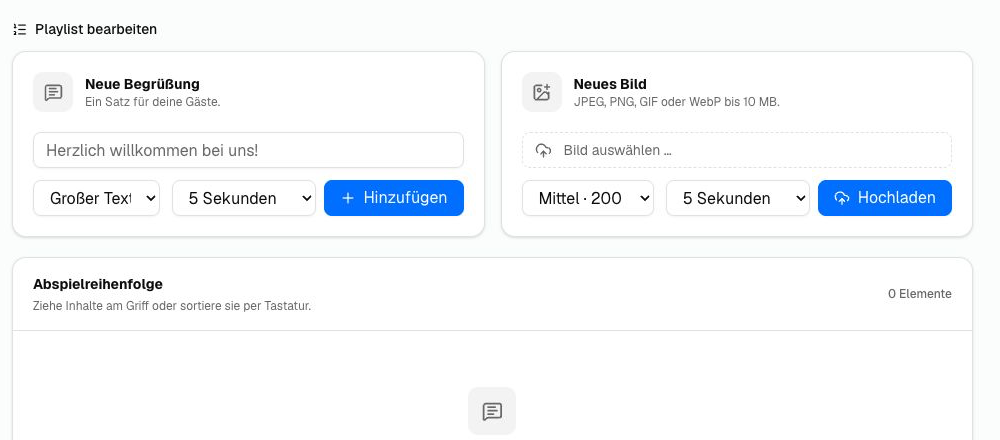
Add a Welcome Message
- Enter up to 500 characters under New welcome message.
- Select a font size from Small text to Maximum text.
- Select a display duration: 1, 2, 5, 10, 20, 30 or 60 seconds.
- Click Add.
Short, personal messages are easiest to read from several metres away. Choose a smaller font size for longer text.
Add an Image
- Click Choose image under New image.
- Select a JPEG, PNG, GIF or WebP file up to 10 MB.
- Choose a display size between 100 and 800 pixels.
- Select the display duration.
- Click Upload.
Use images with sufficient resolution and strong contrast. Transparent PNG or WebP files work particularly well for logos.
Change the Order
Drag an item by its handle to the required position. The order is saved automatically. Keyboard-based sorting is also supported. See Playback Order for detailed instructions.
Edit or Pause an Item
Every playlist item has its own settings:
- Change the text or image size
- Adjust the display duration
- Temporarily remove it from playback with Active/Paused
- Apply changes with Save
Paused items remain stored but are not delivered to the display.
Delete an Item
Click the bin icon beside the item and confirm the prompt. Deleting an image also removes its file. This action cannot be undone through the interface.
Multiple Mirrors
When Multi-Mirror is active, select the correct mirror in the top-right corner before editing. Every mirror has its own playlist and playback order.