Getting Started
1. Sign In
- Open your TBTGuest address in a browser.
- Enter your email address and password.
- Select Sign in.
If two-factor authentication is enabled for your account, enter the six-digit code from your authenticator app. You can use one of your saved backup codes instead.
When using a temporary password, you are immediately asked to create a personal password. The new password must contain at least 10 characters. Sign in again after changing it.
2. Explore the Interface
On a computer, the navigation is on the left. On smaller screens, it appears at the top.
- Content: playlist of welcome messages and images
- Settings: displays, Multi-Mirror and the MagicMirror connection
- Users: invitations, roles and access; administrators only
- Security: password and two-factor authentication for your own account
When Multi-Mirror is active, use the mirror selector in the top-right corner to switch between reception displays. Changes always apply to the currently selected mirror.
3. Create Your First Item
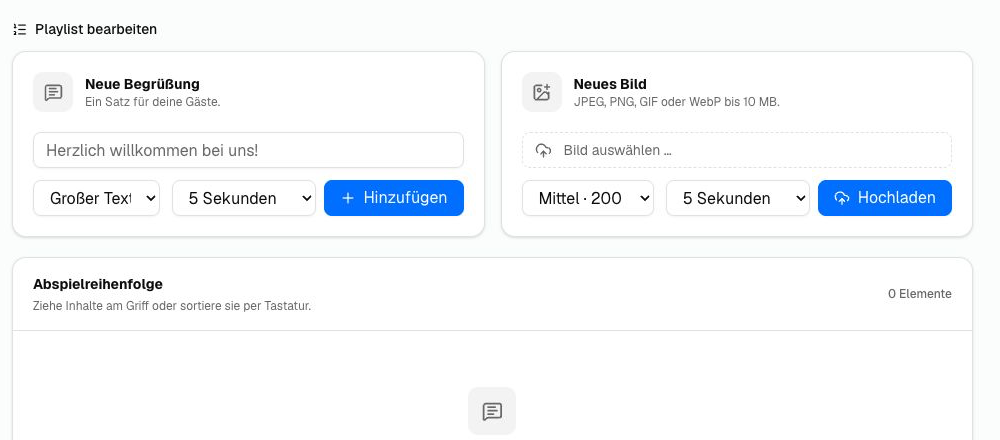
- Open Content.
- Enter a message under New welcome message.
- Select its font size and display duration.
- Click Add.
The item appears in the Playback order immediately and is active by default. Depending on the display's polling interval, an update may take up to one minute. Reloading the MagicMirror display triggers an immediate request.
Sign Out
Click the sign-out icon beside your account in the bottom-left corner. On mobile devices, the button is located at the top.