Managing Mirrors and Their Connection
Use Settings to manage displays and their protected connection to TBTGuest.
Select a Mirror
When Multi-Mirror is active, a mirror selector appears in the top-right corner. The selected mirror determines which playlist, settings and connection details you are editing.
Multi-Mirror
Multi-Mirror is an optional licensed feature. Every licensed additional mirror receives:
- Its own playlist and playback order
- Its own private feed token
- A separate entry in the interface

Administrators can enable Multi-Mirror, name mirrors and add mirrors within the available licence allowance. Disabling Multi-Mirror preserves additional mirrors and their content, but hides them and deactivates their feeds.
Deleting an additional mirror also removes its content and connection details. Confirm that the correct mirror is selected before continuing.
API Endpoint and Feed Token
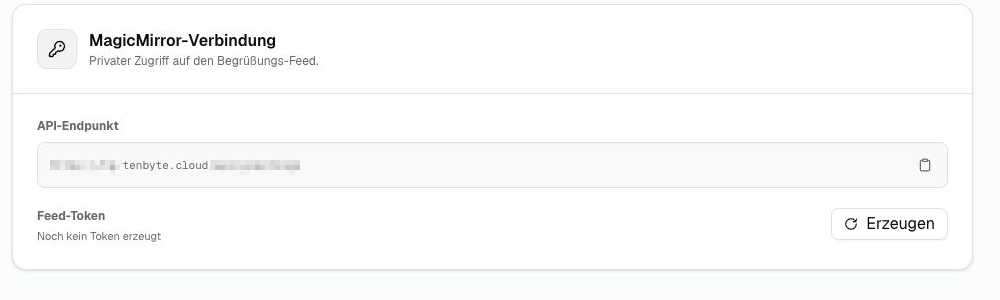
The MagicMirror connection card contains the two values required by the display:
- API endpoint: address of the protected welcome feed
- Feed token: private key for this specific mirror
Only administrators can create, reveal, copy or renew feed tokens.
Create a Token
- Select the required mirror.
- Open Settings.
- Click Create beside the feed token.
- Copy the API endpoint and token into the configuration of the corresponding display.
Renew a Token
Click Renew if a token has been shared accidentally or a device is being replaced. The previous token becomes invalid immediately. Update the display configuration afterwards or it will no longer be able to retrieve content.
Treat the feed token like a password. Do not send it through unencrypted messages or include it in public documents, screenshots or Git repositories.
See Connecting MagicMirror for the technical setup.