Playback Order
The Playback order section shows all welcome messages and images for the currently selected mirror. The connected display plays active items from top to bottom and then starts again with the first item.
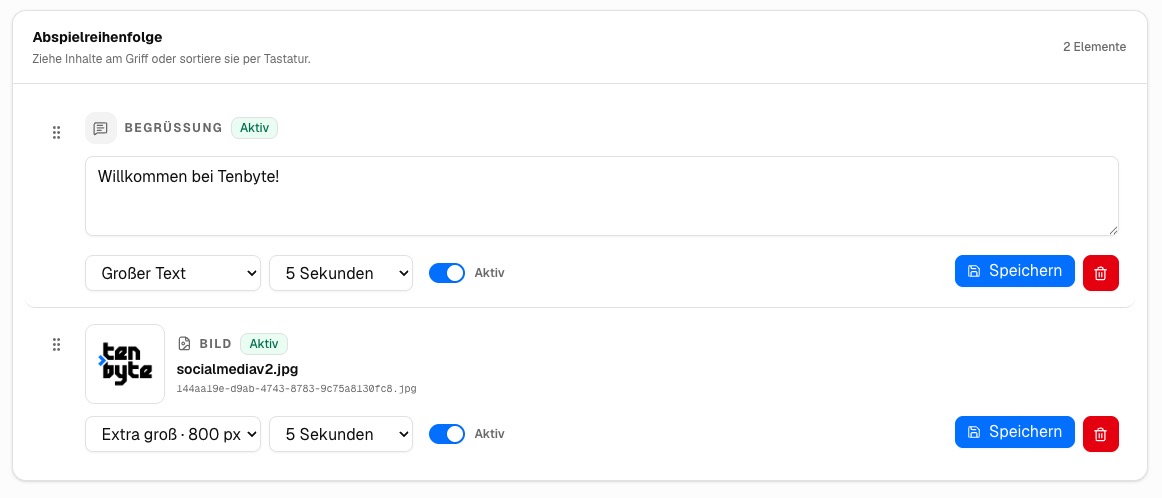
Change the Sequence
- Open Content.
- If you use Multi-Mirror, select the required mirror in the top-right corner.
- Drag an item by the handle on its left to the required position.
- Release the item when it is in the correct place.
The new order is saved automatically. A confirmation appears after the update has been stored.
You can also focus the drag handle with the keyboard, pick up the item, move it with the arrow keys and put it down again.
Configure an Item
Each item can be adjusted directly in the playlist:
- Welcome message: edit the text and select its font size.
- Image: select the display size.
- Display duration: choose how long the item remains visible before the next item appears.
- Active: include the item in playback. Switch this off to pause it without deleting it.
Click Save on the item after changing its content, size, duration or active state.
Paused items remain in the list but are skipped by the display. Their position is retained when they are activated again.
Delete an Item
Click the red bin button on the item and confirm the prompt. Deleting an image also removes the uploaded file. This cannot be undone through the interface.
When Changes Appear
The selected mirror receives the updated playlist with its next feed request. With the default configuration, this can take up to 60 seconds. Reload the MagicMirror display to request the latest content immediately.
Every mirror has its own playback order. If a change appears on the wrong display or not at all, confirm that the correct mirror was selected before editing.